
Hard drive not detected means a connected internal or external hard drive is invisible — either not showing in the Windows BIOS at startup, absent from Device Manager, or missing from Disk Management. The drive may not spin up at all, or it may power on but fail to communicate with the computer. According to Microsoft’s disk management documentation, hard drive detection failures fall into two distinct categories: hardware-level failures (not detected in BIOS) and driver or configuration failures (detected in BIOS but not in Windows).
What causes a hard drive not to be detected
Loose or failed SATA data cable — The SATA cable carries data between the hard drive and the motherboard. A loose connection, particularly on the smaller motherboard connector, causes intermittent or complete detection failure.
Insufficient power — Hard drives require consistent 5V and 12V power from the power supply. A failing power supply or a shared power connector delivering insufficient current prevents the drive from spinning up.
Uninitialised disk — New hard drives shipped without partitions or drives previously used in a different system may appear in Disk Management as Unknown and require initialisation before Windows can use them.
Outdated storage controller driver — The chipset driver that controls the SATA or NVMe controller is out of date or was replaced by a generic version after a Windows update.
Failed drive — Hard drives with mechanical failure (clicking head) or electrical failure do not respond to communication attempts and are invisible to the BIOS.
How to fix hard drive not detected
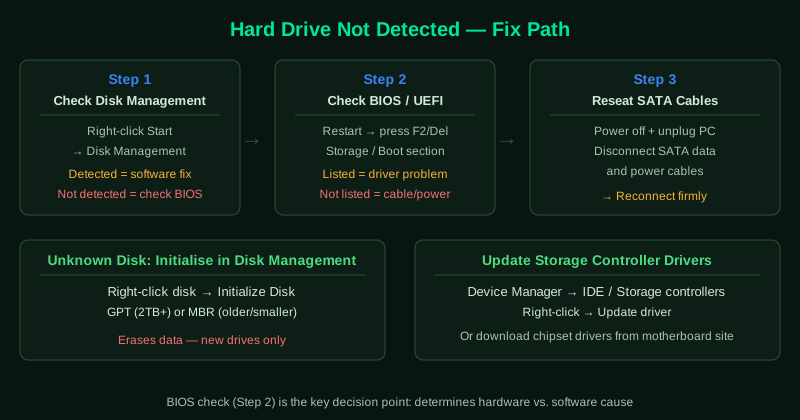
Work through the steps in order. Start with step 1 (Disk Management) to determine whether the problem is software or hardware — this determines which remaining steps are relevant.
How to verify the fix
After applying each step, open Disk Management and check whether the hard drive now appears with a healthy partition and a drive letter.
Known limitations
Microsoft’s Disk Management and Diskpart tools cannot repair a hard drive with physical damage — bad sectors that cause read errors will persist after CHKDSK and cannot be fixed by software. Microsoft’s documentation also does not cover RAID configurations: a drive that is part of a hardware RAID array will not appear as a standalone disk in Disk Management and requires the RAID controller’s management software for access. Additionally, NVMe SSDs that have lost their firmware due to an interrupted update may not be detected even in BIOS — this requires a manufacturer-specific firmware recovery tool and is not addressed in Windows documentation. Open File Explorer and confirm the drive is accessible. For external drives, try browsing to a file you stored on it previously. If the drive appears but you cannot access files, run chkdsk X: /f /r from Command Prompt as administrator (replace X with the drive letter). If the drive does not appear in BIOS after reseating cables, the drive may have failed — see Seagate External Hard Drive Not Working — Fix or consult a data recovery specialist for internal drives.
Step-by-step fix
Check Disk Management for the hard drive
Right-click the Start button and select Disk Management. Look for your hard drive in the disk list at the bottom of the window. An internal hard drive appears as Disk 0, Disk 1, etc. An external drive appears as a removable disk. If the drive appears here without a letter or partition, see step 4. If the drive does not appear in Disk Management at all, Windows has not detected it at the driver level — the problem is the BIOS, cable, or physical hardware.
Check BIOS to see if the hard drive is detected
Restart the computer and enter BIOS setup by pressing the key shown on the startup screen (typically F2, F10, Del, or Esc depending on the manufacturer). Navigate to the Storage or Boot section. If your hard drive is listed, Windows's storage driver or Disk Management settings are the issue — continue to step 4. If the drive is not listed in BIOS at all, the problem is a hardware connection — SATA cable, power cable, or a failed drive. For external drives, if not in BIOS, try a different USB cable and port.
Reseat or replace the SATA and power cables (internal drives)
Power off the computer and unplug it from the wall. Open the case and locate the SATA data cable connecting the hard drive to the motherboard, and the power cable from the power supply to the drive. Disconnect both cables from the drive end, wait 30 seconds, and reconnect them firmly. A loose SATA connector causes intermittent detection failures. If the drive was not detected before, try plugging the SATA cable into a different SATA port on the motherboard. If you have a spare SATA cable, replacing the data cable is a quick test.
Initialise the hard drive in Disk Management
If the hard drive appears in Disk Management as Unknown or shows a prompt to initialise, right-click the disk and select Initialize Disk. Choose MBR for drives under 2 TB on older systems, or GPT for drives over 2 TB or modern systems using UEFI. After initialising, right-click the Unallocated space and select New Simple Volume. Follow the wizard to create a partition and format the drive. This process erases all data on the drive — only proceed on a new drive or one you have already backed up.
Update or reinstall storage controller drivers
Open Device Manager (right-click Start > Device Manager). Expand IDE ATA/ATAPI controllers or Storage controllers. Right-click the controller your hard drive is connected to and select Update driver > Search automatically for drivers. If Windows finds no update, visit your motherboard manufacturer's website and download the latest chipset drivers. On AMD systems, install AMD Chipset drivers. On Intel systems, use the Intel Rapid Storage Technology driver. Outdated storage controller drivers can cause hard drives that were previously detected to disappear.
Use Diskpart to assign a drive letter
Open Command Prompt as administrator. Type diskpart and press Enter. Type list disk to see all connected drives and identify your hard drive by its size. Type select disk N (replace N with your disk number). Type list partition to see its partitions. Type select partition 1 (or whichever partition number appears). Type assign letter=X (replace X with any unused letter). Type exit. Open File Explorer — the drive should now appear. This method works when Disk Management's graphical interface fails to assign a letter correctly.