
Seagate external hard drive not working covers a range of problems — the drive is not recognised by Windows, shows a device error, makes clicking sounds, or appears in Device Manager but is inaccessible. Seagate is the world’s largest hard drive manufacturer, and their external drives use the same diagnostic tools and failure modes as other mechanical hard drives. According to Seagate’s own support documentation, most recognition failures are caused by cable problems, file system corruption, or driver issues — rather than physical drive failure.
What causes a Seagate external hard drive to stop working
USB cable failure — Seagate’s portable drives are bus-powered over USB, making them more sensitive to cable quality than desktop drives with separate power adapters. A fraying or bent cable delivers unstable power and data connections.
File system corruption — Removing the drive without using Safely Remove Hardware while Windows is writing data corrupts the NTFS or exFAT file system. Windows cannot read the drive until the file system is repaired.
Driver conflict or corruption — The USB bridge chip inside Seagate enclosures uses a driver that can become corrupted after Windows updates or failed driver installations.
Mechanical failure — The read/write head inside the drive platter assembly fails after physical shock, years of use, or manufacturing defects. Clicking sounds and failure to spin up are indicators of mechanical failure.
Firmware bug — Some Seagate drive models have firmware issues that cause Windows 11 compatibility problems. Updating the drive firmware through SeaTools resolves these cases.
How to fix Seagate external hard drive not working
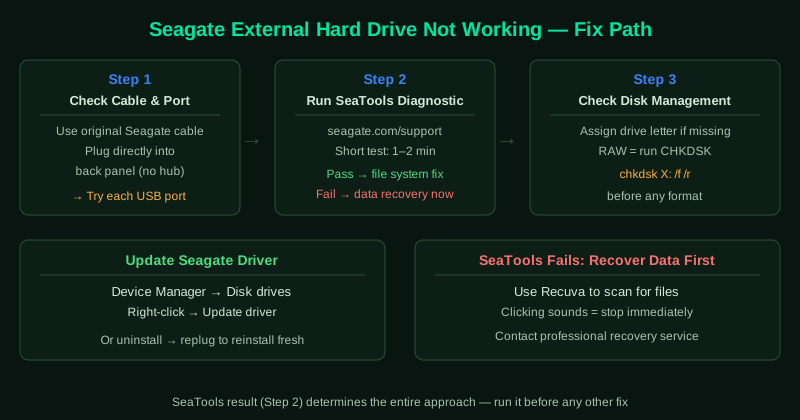
Work through the steps in order. Run SeaTools first (step 2) — a failing test result changes the entire approach from software repair to immediate data recovery.
How to verify the fix
After applying software fixes, open File Explorer and navigate to the Seagate drive.
Known limitations
SeaTools cannot repair physical damage — a failing SeaTools test result means the drive requires professional recovery, not software intervention. Seagate’s own documentation acknowledges that drives with head stack failures or platter damage have a data recovery success rate that depends entirely on the extent of physical damage, and no home tool addresses this. Additionally, certain Seagate SMR (Shingled Magnetic Recording) drive models have documented firmware bugs that cause them to stop responding after sustained write operations — these drives may recover after a full power cycle but the underlying firmware issue is not resolved by driver updates alone. Open a folder and confirm files are accessible. If you ran CHKDSK, check the completion message for the number of errors found and fixed. If no errors were found and the drive is accessible, the fix worked. If the drive continues to fail, compare your results with Seagate’s Support Knowledge Base at seagate.com/support for model-specific guidance, or contact Seagate’s support directly at 1-800-SEAGATE.
Step-by-step fix
Check the connection and try a different USB cable
Seagate external hard drives are sensitive to cable quality. The included USB cable is specifically rated for the drive's power requirements. If you are using a third-party cable or the cable has been bent sharply, replace it with the original Seagate cable or a high-quality USB 3.0 cable. Also try a different USB port — use a port directly on the computer rather than a hub. Plug into the back of a desktop if possible. If the drive's indicator light comes on but the drive is not recognised, continue to the next step.
Run SeaTools to diagnose the drive
Download SeaTools for Windows from Seagate's official website (seagate.com/support/downloads/seatools). Install and launch it. SeaTools automatically detects connected Seagate drives. Select your drive and run the Short Drive Self Test first — this takes 1 to 2 minutes and checks the most critical drive components. If the short test fails, the drive has a hardware problem — focus on data recovery immediately. If the short test passes, run the Long Generic test to check every sector of the drive. A passing long test means the drive is physically healthy and the issue is software-based.
Check Disk Management and assign a drive letter
Right-click the Start button and select Disk Management. If the Seagate drive appears here without a drive letter, right-click its partition and select Change Drive Letter and Paths > Add. Choose any available letter. If the drive shows as RAW, the file system is corrupted. Do not format it yet — run CHKDSK first to attempt repair. If the drive does not appear in Disk Management at all, the problem is at the hardware or driver level — continue to step 4.
Run CHKDSK to repair file system errors
Open Command Prompt as administrator. Type chkdsk X: /f /r (replace X with the Seagate drive's assigned letter) and press Enter. Type Y if prompted to schedule the check for the next restart. CHKDSK scans every sector of the drive, repairs file system errors (/f), and locates bad sectors (/r). For a 1 TB drive, this process can take 30 minutes to several hours. Do not interrupt it. After completion, check if the drive is accessible in File Explorer. If CHKDSK reports it cannot fix the problem, the drive has significant damage and data recovery software is the next step.
Update or reinstall the Seagate USB driver
Open Device Manager (right-click Start > Device Manager). Expand Disk drives. Find the Seagate drive — it may show a yellow exclamation mark. Right-click and select Update driver > Search automatically for drivers. If no update is found, right-click and select Uninstall device, then disconnect the drive, wait 30 seconds, and reconnect it. Windows reinstalls the driver automatically. Alternatively, visit Seagate's support page for your specific drive model to download the latest driver or firmware update.
Attempt data recovery before formatting
If the Seagate drive appears in Disk Management as RAW or inaccessible, and CHKDSK cannot repair it, use Recuva (free) to scan for recoverable files before taking any further action. Install Recuva, select the Seagate drive, and run a deep scan. Recuva can often recover files from drives with corrupted file systems. For drives with physical damage (indicated by a failing SeaTools test, clicking sounds, or the drive not spinning up), contact a professional data recovery service — Seagate offers its own recovery service, and companies like DriveSavers or Ontrack specialise in physical drive recovery.