
Flash drive not recognized means you insert a USB flash drive and Windows gives no response — no connection sound, no notification in the system tray, and no new entry in File Explorer or Disk Management. The drive may or may not show an activity light. According to Microsoft’s USB troubleshooting guidance, the most common causes are a faulty USB port on the computer, a USB driver problem, or a corrupted file system on the flash drive.
What causes a flash drive not to be recognized
Faulty USB port — Individual USB ports can fail from physical wear, connector damage, or power delivery problems. A port may appear functional for some devices while failing to supply enough current for a flash drive.
Corrupted USB driver — The USB Mass Storage driver handles all USB storage devices. Corruption from an abrupt disconnection, a Windows update conflict, or another failed device installation can prevent new drives from being recognised.
File system corruption — Removing a flash drive without using Safely Remove Hardware while data is being written corrupts the file allocation table. Windows cannot mount a drive with a corrupted file system.
USB Selective Suspend — Windows power management puts inactive USB ports into a low-power state. Reconnecting a drive to a suspended port sometimes causes a recognition failure, particularly on laptops.
Drive hardware failure — Flash memory chips have a finite write cycle limit. Heavily used drives eventually develop bad sectors that prevent mounting. Physical damage from drops, water, or electrostatic discharge can cause instant failure.
How to fix flash drive not recognized
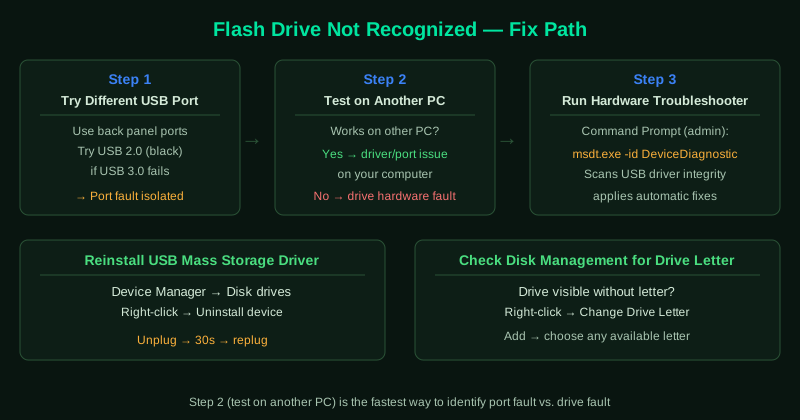
Work through the steps in order. Step 1 (different port) and step 2 (different computer) are the fastest diagnostic checks and identify whether the problem is the port, the computer, or the drive.
How to verify the fix
After each step, remove and reinsert the flash drive.
Known limitations
Windows has no built-in tool to recover data from a flash drive with failed flash memory chips — the Hardware and Devices troubleshooter and CHKDSK both require the drive to be electrically detectable to function. If a drive is completely invisible in Device Manager, no Windows-native fix applies. Additionally, some counterfeit flash drives sold with falsified capacity labels (a 128 GB drive that physically stores only 8 GB) fail in a way that mimics file system corruption but cannot be fixed by formatting — the drive’s controller firmware is designed to misreport capacity, and no standard fix resolves this. A recognised flash drive plays the USB connection sound and appears as a lettered drive in File Explorer within a few seconds. If the drive appears in File Explorer but shows no files, your data may still be intact — run CHKDSK to repair the file system before concluding the data is lost. If the drive appears in Disk Management but not File Explorer, see USB Drive Not Recognized — Fix for drive letter assignment steps.
Step-by-step fix
Test the flash drive in a different USB port
Remove the flash drive and plug it into a different USB port on the computer. Use a port directly on the computer rather than a USB hub or extension cable. Desktop computers have ports on the back panel that connect directly to the motherboard — these are more reliable than front panel ports. If the flash drive is recognised in a different port, the original port is faulty. If the drive fails in all ports, continue to the next step.
Test the flash drive on a different computer
Plug the flash drive into another computer. If it is recognised immediately, the problem is with your computer's USB drivers or ports — not the drive itself. If the drive fails on the other computer too, the flash drive likely has a hardware fault. Physical damage from drops, extreme temperatures, or water exposure can cause permanent failure. A flash drive that works on one computer but not another almost always has a driver or power management issue on the failing computer.
Run the Hardware and Devices troubleshooter
Open Command Prompt as administrator and type: msdt.exe -id DeviceDiagnostic and press Enter. The Hardware and Devices troubleshooter launches and scans for USB recognition problems. Follow the prompts — it automatically checks USB driver integrity, scans for device conflicts, and applies available fixes. This tool is built into Windows 10 and Windows 11 and does not require any download.
Reinstall USB drivers in Device Manager
With the flash drive plugged in, open Device Manager (right-click Start > Device Manager). Look in two places: under Disk drives for your flash drive, and under Universal Serial Bus controllers for any Unknown Device or USB Mass Storage Device entry. Right-click the device and select Uninstall device. Do not check the option to delete the driver software. Unplug the flash drive, wait 30 seconds, and plug it back in. Windows detects the drive and reinstalls the driver automatically.
Check Disk Management for an unassigned drive
Right-click Start and select Disk Management. Look for your flash drive in the list — it may appear without a drive letter or as Unallocated. Right-click the drive's partition and select Change Drive Letter and Paths > Add. Choose any available letter and click OK. If the drive appears as RAW (meaning the file system is unreadable), you can attempt to repair it with CHKDSK by opening Command Prompt as administrator and typing: chkdsk X: /f /r (replace X with the assigned letter).
Disable USB Selective Suspend
Open Control Panel > Hardware and Sound > Power Options > Change plan settings > Change advanced power settings. Expand USB settings and then USB selective suspend setting. Set both On battery and Plugged in to Disabled. Click OK. USB Selective Suspend is a power-saving feature that puts USB ports into a low-power state when not in use. While it saves battery life, it can prevent Windows from recognising a flash drive when plugged in, particularly on laptops.