
USB and external drive errors prevent Windows from recognising connected storage devices — flash drives, external hard drives, or SSDs that either trigger a “USB Device Not Recognized” error or simply do not appear in File Explorer. According to Microsoft’s official documentation, the most common causes are driver failures, power delivery problems, and file system corruption.
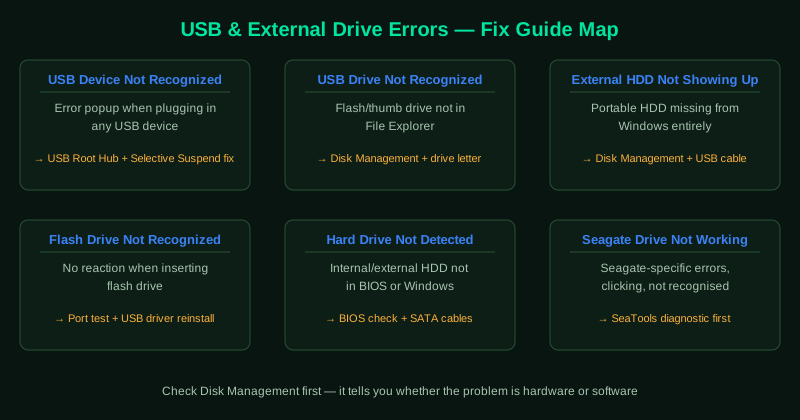
This hub covers the most common USB and external drive errors on Windows. Select the guide that matches your situation.
Fix guides in this pillar
USB Device Not Recognized — Fix
Windows shows a “USB Device Not Recognized” notification in the system tray when you plug in any USB device — a flash drive, phone, camera, or external drive. The device does not appear in File Explorer. This guide covers restarting the USB root hub, updating or reinstalling USB drivers, disabling USB selective suspend, and using the Windows USB troubleshooter.
Best for: “USB Device Not Recognized” error balloon, device does not appear anywhere in Windows, device works on another computer but not yours.
USB Drive Not Recognized — Fix
A USB flash drive or thumb drive is inserted but Windows does not show it in File Explorer. The drive may or may not appear in Disk Management. This guide covers assigning a drive letter, running CHKDSK, updating USB mass storage drivers, and recovering data before formatting.
Best for: Flash drive not showing in File Explorer, USB stick recognised by one computer but not another, drive appears as unallocated in Disk Management.
External Hard Drive Not Showing Up — Fix
An external hard drive is connected and powered but does not appear in File Explorer or gives no response. This guide covers checking Disk Management for an unassigned drive letter, updating the disk driver, changing the USB cable or port, and initialising a new drive.
Best for: External HDD not in File Explorer, drive spins up but does not appear, new external drive not recognised on first connection.
Flash Drive Not Recognized — Fix
A USB flash drive is inserted but generates no response — no sound, no notification, and no entry in File Explorer or Device Manager. This guide covers testing the drive in different ports, running the Hardware and Devices troubleshooter, updating USB drivers, and using Disk Management to recover an inaccessible drive.
Best for: No reaction when inserting flash drive, drive was working then stopped, drive not detected after being dropped or removed unsafely.
Hard Drive Not Detected — Fix
An internal or external hard drive is not detected by Windows or appears in BIOS but not in Windows. This guide covers checking BIOS/UEFI settings, replacing the SATA or USB cable, initialising an unrecognised disk in Disk Management, and updating storage controller drivers.
Best for: Hard drive missing from BIOS, drive detected in BIOS but not in Windows, new hard drive not showing up after installation.
Seagate External Hard Drive Not Working — Fix
A Seagate external hard drive is not recognised, makes clicking sounds, or is visible in Device Manager with an error. This guide covers using Seagate’s official diagnostic tool, running CHKDSK, updating the Seagate driver, and recovering data from a failing drive.
Best for: Seagate drive not showing up in Windows, Seagate drive clicking or beeping, Seagate drive visible in Device Manager but inaccessible.