
USB Device Not Recognized is a Windows error notification that appears in the system tray when you plug in a USB device — a flash drive, phone, external hard drive, or camera — and Windows cannot communicate with it. The device does not appear in File Explorer, and an error balloon reads “USB Device Not Recognized: The last USB device you connected to this computer malfunctioned and Windows does not recognize it.” According to Microsoft’s official documentation, the most common causes are a corrupted USB driver, a power delivery problem, or a fault in the USB port itself.
What causes USB Device Not Recognized
Corrupted USB driver — The USB driver stored in Windows has become corrupted or outdated. This can happen after a Windows update, a failed driver installation, or an abrupt disconnection of a USB device mid-transfer.
USB Selective Suspend — A Windows power-saving feature that cuts power to inactive USB ports. When a device is reconnected to a suspended port, Windows sometimes fails to re-establish communication and reports the device as unrecognized.
Insufficient USB port power — Desktop computers with many USB devices connected simultaneously, and laptops on battery-saving modes, sometimes deliver less power than a device requires. External hard drives are particularly susceptible.
Faulty USB port or cable — Physical damage or wear on a USB port or cable causes intermittent connections. Windows interprets the unstable signal as an unrecognized device.
Device-specific driver missing — Some USB devices require a manufacturer-provided driver that Windows does not include by default. Without it, Windows cannot identify or use the device.
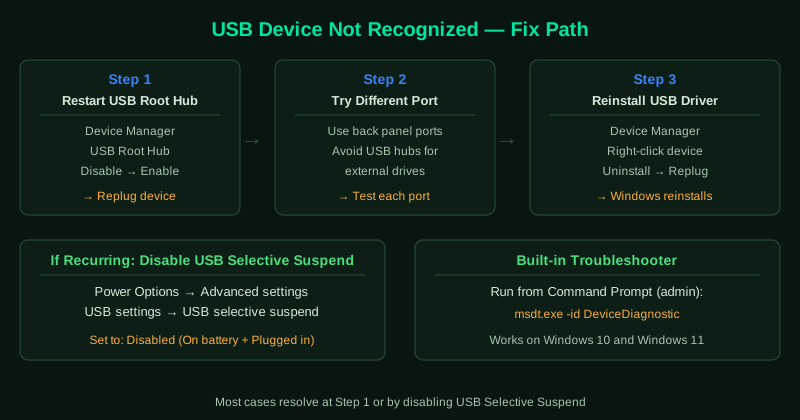
How to fix USB Device Not Recognized
Work through the steps in order. Most users resolve this at step 1, 2, or 4.
How to verify the fix
After applying each step, unplug the USB device, wait 10 seconds, and plug it back in.
Known limitations
Microsoft’s official USB troubleshooting documentation does not cover every hardware configuration. USB 3.2 Gen 2 ports on certain motherboards have known compatibility issues with older USB 2.0 devices that Microsoft has not formally documented — in these cases, using a USB 2.0 hub as an intermediary can resolve the problem. Additionally, USB devices with proprietary encryption chips (certain hardware security keys and encrypted drives) may not follow standard driver reinstall procedures and require manufacturer-specific software to re-establish recognition after a driver reset. If Windows plays the device-connected sound and the device appears in File Explorer within 5 seconds, the fix worked. If the device appears in Device Manager without a yellow exclamation mark but still does not show in File Explorer, see USB Drive Not Recognized — Fix for drive letter and file system issues.
Step-by-step fix
Unplug the device and restart the USB root hub
Unplug the USB device. Open Device Manager (right-click Start > Device Manager). Expand the Universal Serial Bus controllers section. Right-click each entry that says USB Root Hub and select Disable device, then immediately right-click again and select Enable device. This forces Windows to reinitialise the USB controller. Plug the device back in and check if it is recognised.
Try a different USB port
Plug the device into a different USB port on the computer — preferably one on the back panel of a desktop, or a port on the opposite side of a laptop. USB ports can fail individually. If the device is recognised in a different port, the original port has a hardware fault. Avoid USB hubs for external hard drives, as hubs may not supply enough power.
Uninstall and reinstall the USB device driver
With the device plugged in, open Device Manager. Find the device under Universal Serial Bus controllers or under Other devices (it may appear with a yellow exclamation mark). Right-click the device and select Uninstall device. Unplug the device, wait 30 seconds, then plug it back in. Windows automatically reinstalls the driver. If the driver does not install automatically, go to Action menu in Device Manager and select Scan for hardware changes.
Disable USB Selective Suspend
Open Control Panel > Hardware and Sound > Power Options. Click Change plan settings next to your current power plan, then click Change advanced power settings. In the Advanced settings window, expand USB settings, then expand USB selective suspend setting. Set it to Disabled for both On battery and Plugged in. Click OK and Apply. USB Selective Suspend cuts power to inactive USB ports to save energy, which can prevent devices from being recognised when first plugged in.
Run the Windows USB troubleshooter
Open Settings > System > Troubleshoot > Other troubleshooters (Windows 11) or Settings > Update & Security > Troubleshoot > Additional troubleshooters (Windows 10). Find Hardware and Devices and run the troubleshooter. It automatically checks for common USB driver problems and applies fixes. On Windows 11, if the Hardware and Devices troubleshooter is not listed, run it from Command Prompt: msdt.exe -id DeviceDiagnostic
Update USB controller drivers
Open Device Manager and expand Universal Serial Bus controllers. Right-click each USB Root Hub and USB Host Controller entry and select Update driver > Search automatically for drivers. If Windows finds no update, visit your motherboard or laptop manufacturer's website and download the latest chipset or USB controller drivers manually. On AMD systems, install the latest AMD Chipset drivers. On Intel systems, install the Intel Driver & Support Assistant.