
USB drive not recognized means you plug in a USB flash drive or thumb drive and Windows gives no response — no sound, no notification, and no new drive in File Explorer. The drive may be completely invisible or it may appear in Disk Management without a drive letter. According to Microsoft’s troubleshooting guidance, the most common causes are a missing drive letter assignment, a corrupted file system on the drive, or a USB driver problem on the computer.
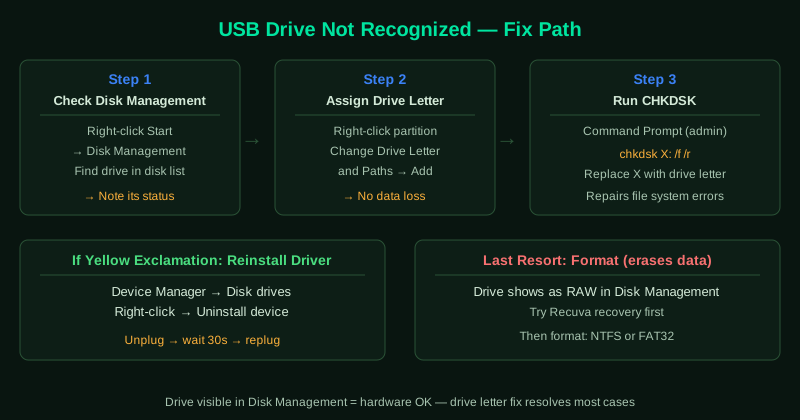
What causes a USB drive not to be recognized
Missing drive letter — Windows assigns a drive letter (like E: or F:) to each storage device. If the drive connected to your computer previously had a letter that conflicts with another device, or if the letter assignment was lost, the drive exists but is invisible in File Explorer.
Corrupted file system — An unsafe removal (pulling the drive out while files are being written) or a power interruption during a write operation can corrupt the drive’s file system. Windows cannot read a corrupted file system and may label it as RAW.
Outdated or corrupted USB Mass Storage driver — The USB Mass Storage driver handles communication between Windows and USB storage devices. If this driver is damaged, USB drives connect electrically but fail to appear in the operating system.
Incompatible file system — A drive formatted on Linux (ext4), macOS (HFS+), or certain cameras may be unreadable by Windows without additional software.
Physical damage or wear — Flash drives have a limited number of write cycles. Heavily used or older drives may develop read errors that prevent Windows from mounting them.
How to fix USB drive not recognized
Work through the steps in order. Steps 1 and 2 resolve the majority of cases where the drive hardware is functional.
How to verify the fix
After applying each step, unplug the drive, wait 10 seconds, and plug it back in.
Known limitations
Microsoft’s documentation does not cover drives formatted with Linux file systems (ext4, Btrfs) or macOS HFS+ — Windows cannot read these without third-party software such as Paragon extFS or HFSExplorer, and no built-in Windows fix resolves this. Similarly, drives that have exceeded their flash memory write cycle limit will fail CHKDSK and cannot be repaired by any software method — the hardware is worn out. Recovery software can sometimes extract files from such drives, but the drive itself is not salvageable. If the drive appears in File Explorer with the correct capacity shown, the fix worked. If you can see the drive but cannot open files on it, run CHKDSK as described in step 3. If the drive does not appear at all and none of the steps above helped, see USB Device Not Recognized — Fix for driver-level and hardware-level troubleshooting.
Step-by-step fix
Check Disk Management for the drive
Right-click the Start button and select Disk Management. Look for your USB drive in the list of disks at the bottom — it may appear as a removable disk with no drive letter, shown as Unallocated or RAW. If the drive appears here, Windows has detected the hardware but cannot assign it a drive letter or the file system is unreadable. This is the key diagnostic step.
Assign a drive letter in Disk Management
In Disk Management, right-click the USB drive's partition and select Change Drive Letter and Paths. Click Add, choose a letter not already in use (any letter from D to Z works), and click OK. Open File Explorer — the drive should now appear. This fix works when the drive lost its letter assignment, which can happen after connecting the drive to a different computer or after certain Windows updates.
Run CHKDSK to repair file system errors
If the drive appears in Disk Management with a file system (NTFS or FAT32) but still does not appear in File Explorer after assigning a letter, run CHKDSK. Open Command Prompt as administrator, type chkdsk X: /f /r (replace X with the actual drive letter assigned in the previous step), and press Enter. CHKDSK scans the drive for errors and repairs them. The /f flag fixes errors and the /r flag locates bad sectors. This process can take several minutes for large drives.
Reinstall the USB Mass Storage driver
Open Device Manager (right-click Start > Device Manager). Expand Disk drives. If your USB drive appears with a yellow exclamation mark, right-click it and select Uninstall device. Unplug the drive, wait 30 seconds, and plug it back in. Windows reinstalls the USB Mass Storage driver automatically. If the drive does not appear under Disk drives, expand Universal Serial Bus controllers and look for an Unknown USB Device entry — right-click and uninstall it, then reconnect the drive.
Try a different USB port and cable
USB flash drives are sensitive to port quality. Plug the drive into a different USB port — try USB 2.0 ports (usually black connectors) if the drive was in a USB 3.0 port (usually blue). Some older drives are not fully compatible with USB 3.0 ports on certain motherboards. Also try a direct connection to the computer without any USB hub in between. If you are using a USB extension cable, remove it and connect the drive directly.
Format the drive as a last resort
If the drive appears in Disk Management as RAW (meaning the file system is unreadable) and none of the above steps work, formatting the drive will make it usable again — but permanently erases all data. Before formatting, attempt data recovery using Recuva (free) or by taking the drive to a professional. To format, right-click the drive in Disk Management, select Format, choose NTFS or FAT32 as the file system, and click OK.