
An HP printer that shows Offline in Windows is not responding to print commands — even though the printer itself is powered on. The offline status is a Windows communication state, not necessarily a hardware failure.
According to HP’s official support documentation, the most common causes are the Use Printer Offline mode being active in Windows, a stalled Print Spooler service, or a stuck print job blocking the queue.
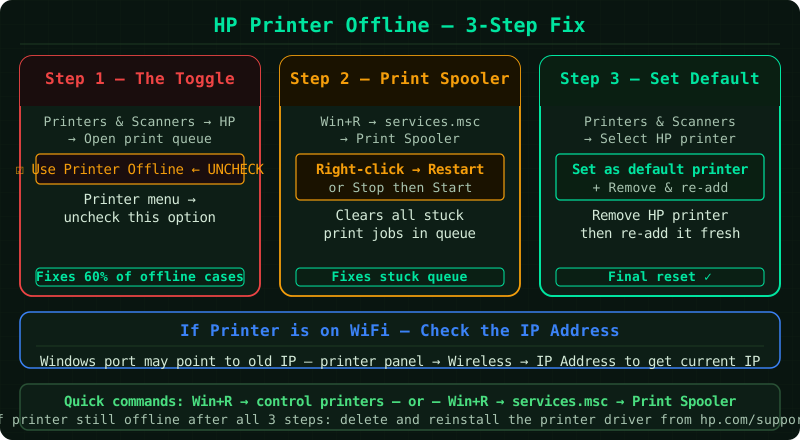
What causes HP Printer Offline status
Windows assigns a printer the “Offline” label when it cannot establish two-way communication with the device. This can happen for several reasons:
- Use Printer Offline mode is enabled — Windows has a manual offline mode that disconnects the printer regardless of its physical connection
- Print Spooler service is stalled — the Windows service that manages all print jobs has stopped or locked up
- Stuck print job — a single failed job can block the queue and prevent the printer from returning online
- No default printer set — Windows may route jobs to a different printer, making the HP appear unresponsive
- Driver or port conflict — after a Windows update, the printer port assignment can change
How to fix HP Printer Offline
Step 1 — Disable Use Printer Offline mode
Windows has a Use Printer Offline toggle that, when enabled, prevents any printing regardless of connection status. This is the most common cause of the offline error.
- Open Settings → Bluetooth & devices → Printers & scanners
- Click your HP printer, then click Open print queue
- In the print queue window, click Printer in the menu bar
- If Use Printer Offline has a tick next to it, click it to remove the tick
The printer status should change from Offline to Ready immediately if the physical connection is intact.
On Windows 10, the path is Control Panel → Devices and Printers → right-click your HP printer → See what’s printing → Printer → Use Printer Offline.
Step 2 — Restart the Windows Print Spooler service
The Print Spooler is the Windows service that manages communication between applications and printers. If it stops or locks, all printers on the system can appear offline.
- Press Win+R, type
services.msc, and press Enter - Scroll down to Print Spooler
- Right-click it and select Restart (or Start if the service shows as stopped)
- Wait for the service to fully restart, then try printing again
If the Spooler restarts but the printer still shows offline, also try stopping the service, then manually deleting files from C:\Windows\System32\spool\PRINTERS\, and restarting the service. This clears any corrupted job files.
Step 3 — Set the HP printer as the default printer
If Windows is set to manage the default printer automatically, it may have switched the default to a different device — sending jobs to the wrong printer and leaving the HP idle.
- Go to Settings → Bluetooth & devices → Printers & scanners
- Scroll down and turn off Let Windows manage my default printer
- Click your HP printer in the list
- Click Set as default
After setting the default, send a test print from any application to confirm the HP is receiving jobs.
Step 4 — Clear the print queue
A stuck print job — particularly one that failed mid-transmission — can block all subsequent jobs and hold the printer in an offline state.
- Go to Settings → Bluetooth & devices → Printers & scanners
- Click your HP printer → Open print queue
- Press Ctrl+A to select all jobs
- Press Delete or right-click and choose Cancel All Documents
- Confirm the cancellation
If jobs refuse to delete from the queue, stop the Print Spooler service first (as in Step 2), delete the files in C:\Windows\System32\spool\PRINTERS\, then restart the Spooler. The queue will be empty when it comes back online.
Step 5 — Run HP Print and Scan Doctor
HP Print and Scan Doctor is HP’s official diagnostic utility for resolving printer connectivity and communication issues. According to HP’s support documentation, it is the recommended first tool when basic troubleshooting does not resolve the offline status.
- Download HP Print and Scan Doctor from support.hp.com
- Run the downloaded file — no installation is required
- Click Start and select your HP printer from the list
- Allow the tool to complete its diagnosis
The tool checks the driver installation, port assignment, Spooler status, and network connectivity for wireless printers. It applies available fixes automatically and reports anything that requires manual intervention.
How to verify the fix
After completing the steps above:
- Open Settings → Bluetooth & devices → Printers & scanners
- Confirm your HP printer shows Ready (not Offline)
- Right-click the printer and select Print test page
A successful test page confirms Windows has re-established communication with the printer.
If the printer still shows offline after all steps, the issue may be with the network connection (for wireless printers) or with the USB port or cable (for wired printers). Try a different USB port or cable, or reconnect the printer to Wi-Fi using the HP Smart app.
Common Questions
Why does my HP printer keep going offline repeatedly? If the printer returns to offline status after each restart, the most likely cause is an unstable Wi-Fi connection or a driver port mismatch. Check the printer’s IP address — if it changes each time it connects to the network, configure a static IP address in the router’s DHCP reservation settings.
HP printer is offline but connected to Wi-Fi. The printer can show an active Wi-Fi connection but still appear offline in Windows if the IP address has changed since the printer driver was installed. Open HP Smart or the printer’s control panel, check the current IP, and compare it to the port listed in Printer Properties → Ports in Windows. Update the port if they differ.
HP printer offline after Windows update. Windows updates occasionally reset printer port assignments or replace drivers with generic versions. Run HP Print and Scan Doctor after any Windows update where the printer stops responding — it detects and corrects driver and port changes introduced by the update.