
Adobe Acrobat not working means the application opens normally but specific features stop functioning — printing does nothing, saving fails silently, editing tools are greyed out, or the application behaves erratically. Unlike not opening or crashing, this error category means Acrobat is running but cannot complete its intended functions. According to Adobe’s troubleshooting documentation, these partial failures are typically caused by corrupted preferences, licensing errors, or installation damage from a failed update.
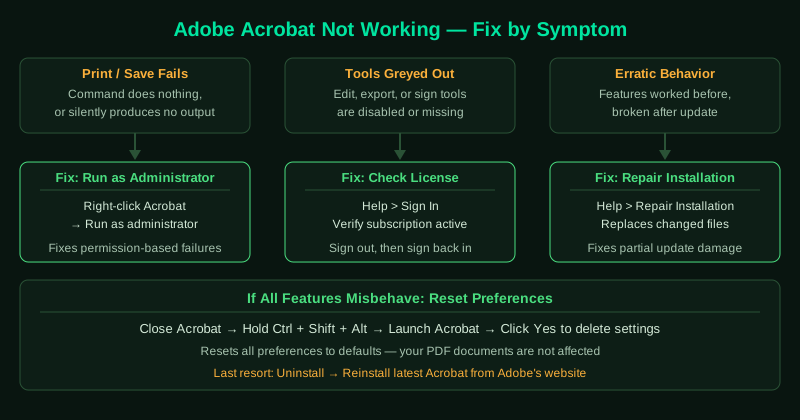
What causes Adobe Acrobat features to stop working
Insufficient permissions — Acrobat needs write access to create temp files, save PDFs, and communicate with printers. Running without administrator rights causes silent failures on these operations.
Corrupted preferences file — Acrobat stores feature settings in a preferences file. If this file becomes corrupted during a crash or update, individual features stop responding even though Acrobat itself opens normally.
Licensing or subscription problem — If your Adobe subscription expires, lapses, or encounters a server verification error, Acrobat restricts or disables features that require an active license.
Partially applied update — An interrupted Acrobat update can leave the installation in an inconsistent state where some components are updated and others are not, causing specific features to malfunction.
How to fix Adobe Acrobat not working
Identify your specific symptom first: if tools are greyed out, start at step 3 (license check). If printing or saving fails, start at step 1 (administrator). If features stopped working after an update, start at step 4 (repair).
How to verify the fix
Test the specific feature that was broken: attempt a print job, save a file to your Desktop, or use a previously greyed-out tool. If the feature works correctly, the fix was successful. If Acrobat freezes during the test rather than producing an error, see Adobe Acrobat Not Responding — Fix.
Step-by-step fix
Run Acrobat as administrator
Right-click the Adobe Acrobat shortcut or taskbar icon and select Run as administrator. Many Acrobat functions — particularly saving files, printing, and accessing certain tools — fail silently when Acrobat lacks the necessary system permissions. Running as administrator bypasses the most common permission-related failures in a single step.
Reset Acrobat preferences
Corrupted Acrobat preferences can disable individual features. Close Acrobat. Hold Ctrl + Shift + Alt (Windows) or Command + Option + Shift (Mac) immediately after launching Acrobat. A dialog will appear asking if you want to delete the current settings. Click Yes. Acrobat will reset all preferences to defaults. Note that this resets your custom settings, but does not affect your documents.
Check and reactivate your Acrobat license
Licensing problems cause features to become greyed out or non-functional. In Acrobat, go to Help > Sign In to verify your Adobe ID is signed in. If you see a Sign Out option, you are signed in — click Help > About to verify the subscription is active. If the license shows expired or invalid, sign out, then sign back in. For volume-licensed versions, contact your IT administrator to reactivate.
Repair the Acrobat installation
Go to Help > Repair Installation. Acrobat downloads and replaces corrupted application files, DLLs, and registry entries. This fixes issues where specific features stop working after an incomplete update or after antivirus software quarantines an Acrobat file. After the repair completes, restart your computer before testing.
Update or reinstall Adobe Acrobat
Outdated Acrobat versions have known bugs that prevent specific functions from working. Go to Help > Check for Updates and install all available updates. If features remain broken after updating, uninstall Acrobat from Control Panel > Programs and Features and reinstall the latest version from Adobe's website. Your documents are unaffected by a reinstall.