
Adobe Reader not opening PDF means Adobe Acrobat Reader is installed on your computer but PDF files do not open in it — double-clicking a PDF opens Chrome, Edge, or another application instead, or Reader launches but shows an error on the file. According to Adobe’s troubleshooting documentation, this problem is almost always a file association issue: another application has claimed the PDF file type from Reader, either during installation or during an update.
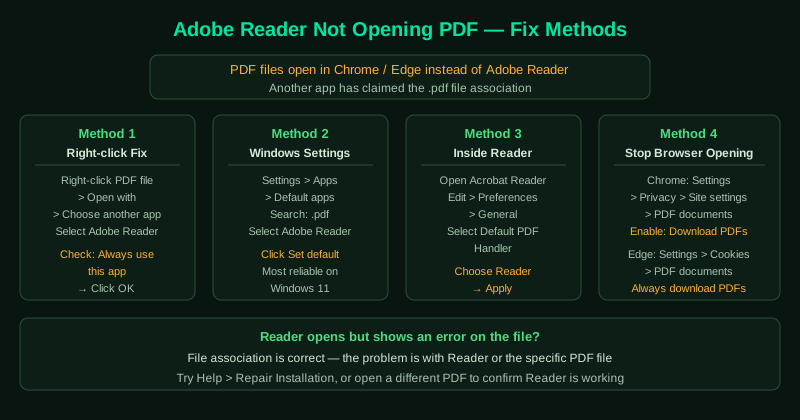
What causes Adobe Reader not to open PDF files
Browser has claimed the PDF association — Chrome and Edge include built-in PDF viewers and register themselves as the default PDF handler during installation or updates. After this, all PDF files open in the browser rather than in Reader.
Software installer overwrote the association — Any application that handles PDF files (PDF printers, document management software, e-signature tools) may claim the .pdf extension during its own installation without clearly notifying you.
Corrupted file association in the Windows registry — If a previous uninstall or failed installation left incorrect entries in the Windows registry, Windows may not know which program to use to open PDF files, causing nothing to happen on double-click.
Reader installation is damaged — If Reader itself is corrupted, it may appear in the default apps list but fail to open files when launched.
How to fix Adobe Reader not opening PDF files
If PDFs open in Chrome or Edge instead of Reader, steps 1 and 5 are the most direct fixes. If Reader opens but shows an error on the file, proceed to step 4 (repair installation).
How to verify the fix
Double-click a PDF file on your desktop. Acrobat Reader should open within 5 seconds and display the document. Check that the Reader window appears and shows the PDF content — not an error message, not a blank screen. If Reader opens but the specific PDF file shows an error, the Reader installation is working correctly but the file may be corrupted — see Cannot Open PDF in Adobe Acrobat — Fix.
Step-by-step fix
Set Adobe Acrobat Reader as the default PDF app
On Windows 11 or 10, right-click any PDF file and select Open with > Choose another app. Select Adobe Acrobat or Adobe Acrobat Reader from the list, and check the box that says Always use this app to open .pdf files. Click OK. This reassigns the PDF file association from the browser back to Reader without any need to reinstall.
Set Reader as default from within Windows Settings
Go to Settings > Apps > Default apps. In the search box, type .pdf and click the result. A list of apps that can open PDF files appears. Select Adobe Acrobat Reader DC and click Set default. This method is more reliable than the right-click method on Windows 11 because it updates the system-wide association rather than just the per-user setting.
Repair Reader's file associations from within Acrobat
Open Adobe Acrobat Reader. Go to Edit > Preferences > General and click the button labeled Select Default PDF Handler. In the dialog that appears, select Adobe Acrobat Reader and click Apply. This re-registers Reader with Windows as the PDF handler, which fixes cases where a browser update or software installer overwrote the association.
Repair the Adobe Acrobat Reader installation
If Reader opens but shows an error on the PDF file rather than opening it, run a repair. Open Acrobat Reader and go to Help > Repair Installation. If Reader itself will not open, go to Control Panel > Programs and Features, find Adobe Acrobat Reader DC, click Change, and select Repair. The repair replaces corrupted application files without removing your settings.
Disable the browser's built-in PDF viewer
Chrome and Edge have built-in PDF viewers that intercept PDF downloads. To prevent this, in Chrome go to Settings > Privacy and security > Site settings > Additional content settings > PDF documents and turn on Download PDFs. In Edge, go to Settings > Cookies and site permissions > PDF documents and enable Always download PDF files. After this, downloaded PDFs will open in Reader rather than the browser.