
PowerPoint not responding means the application freezes during editing, while inserting media, or during slideshow playback — the title bar shows “Not Responding” and all input is ignored. According to Microsoft’s official PowerPoint troubleshooting documentation, the most common cause is hardware acceleration interacting with outdated or incompatible graphics drivers, followed by memory exhaustion from presentations with many high-resolution images or embedded videos.
What causes PowerPoint to freeze and stop responding
Hardware acceleration and GPU driver conflict — PowerPoint uses the GPU to render animations, transitions, and video. When the graphics driver is outdated or incompatible, GPU rendering stalls and the entire application freezes. This is the leading cause of PowerPoint freezes, especially during slideshow playback.
Memory exhaustion from large media — Presentations with many high-resolution images (embedded at full size), embedded video files, or large audio clips can consume gigabytes of memory. When available memory runs out, PowerPoint freezes while trying to render or compress media.
Add-in conflict — Grammarly, Zoom, Mentimeter, and presentation management tools integrate into PowerPoint. After a PowerPoint update, these add-ins can trigger freezes when accessing the PowerPoint object model.
Corrupted slide or embedded object — A single slide containing a corrupted embedded object (OLE link, broken video reference, or malformed animation) can cause PowerPoint to freeze whenever it renders that slide.
How to fix PowerPoint not responding
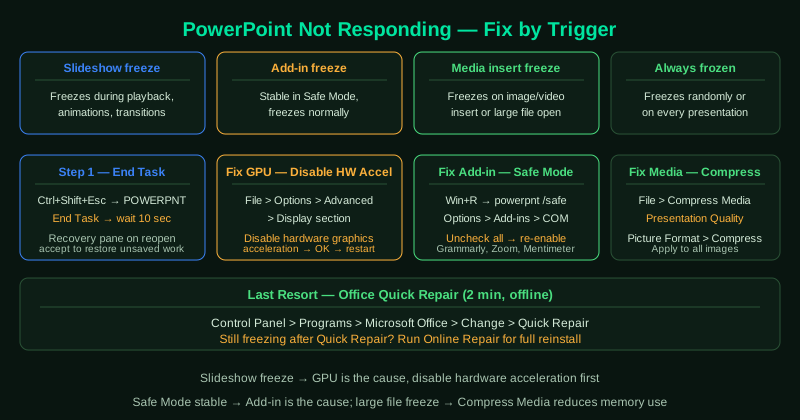
Start with step 2 — disabling hardware acceleration resolves most freeze cases, especially those that occur during slideshow playback or when scrolling through slides with animations.
How to verify the fix
Open the presentation that previously caused the freeze. Run the slideshow from the beginning (press F5) and advance through all slides including any with animations or video. If PowerPoint completes the slideshow without freezing, the fix was successful.
Step-by-step fix
End the frozen PowerPoint process in Task Manager
Press Ctrl + Shift + Esc to open Task Manager. Find Microsoft PowerPoint (POWERPNT.EXE) in the list. If its status shows Not Responding, right-click it and select End Task. Wait 10 seconds before reopening. When PowerPoint restarts after a crash, it will offer to recover your presentation from the AutoRecover file — accept this to restore your most recent unsaved work.
Disable hardware acceleration
Hardware acceleration is the most common cause of PowerPoint freezing, especially on presentations with many animations, video clips, or high-resolution images. Go to File > Options > Advanced. Scroll to the Display section and check Disable hardware graphics acceleration. Click OK and restart PowerPoint. This forces PowerPoint to use the CPU for rendering instead of the GPU, which eliminates driver-related freezes.
Open PowerPoint in Safe Mode and disable add-ins
Press Windows + R, type powerpnt /safe, and press Enter. Safe Mode disables all add-ins and custom toolbars. If PowerPoint works normally in Safe Mode but freezes in regular mode, a third-party add-in is causing the problem. Go to File > Options > Add-ins, set the dropdown to COM Add-ins, click Go, and uncheck each add-in to identify the conflicting one. Common culprits are Grammarly, Zoom, and Mentimeter add-ins.
Compress images and media in the presentation
Presentations with many high-resolution images (over 5 MB each) or embedded video files exhaust memory and cause PowerPoint to freeze during rendering. Go to File > Compress Media > Presentation Quality to reduce embedded video size. For images, select any image, go to Picture Format > Compress Pictures, uncheck Apply only to this picture, and select a lower resolution. This significantly reduces the file's memory footprint.
Run Office Quick Repair
Go to Control Panel > Programs and Features, find Microsoft 365 or Microsoft Office, click Change, and select Quick Repair. The repair process takes about 2 minutes and replaces corrupted PowerPoint files without requiring internet access. After the repair completes, restart your computer. If freezes continue, run Online Repair, which performs a more thorough reinstallation of all Office components.