
Word not opening covers two distinct problems: Microsoft Word itself not launching, and Word launching but being unable to open a specific .docx document. According to Microsoft’s Office support documentation, the most common causes of document-specific failures are file corruption, Windows security blocking downloaded files, and broken .docx file associations that route documents to the wrong application.
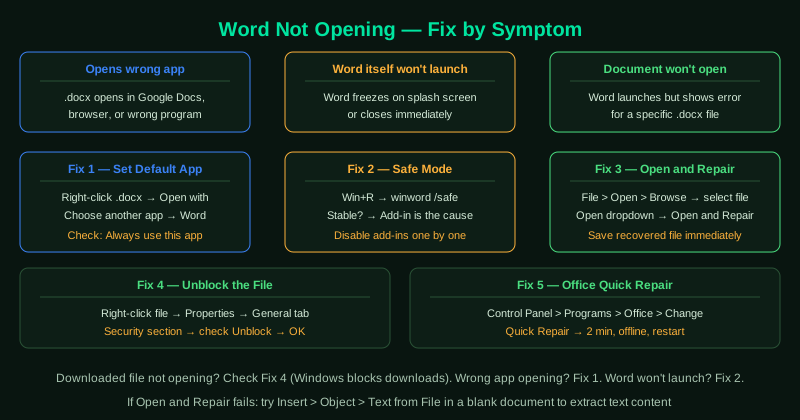
What causes Word not to open documents
Broken .docx file association — When another application installs and claims the .docx extension, double-clicking a Word document opens that application instead of Word. This is common after installing Google Drive, OneDrive desktop, or PDF editors.
Windows security block — Files downloaded from the internet carry a “Mark of the Web” flag that Windows uses to identify potentially unsafe files. Word detects this flag and opens the file in Protected View, or shows an access error if the block is applied at the filesystem level.
Corrupted document — An incomplete download, a storage error, or an abrupt power loss during save can corrupt a .docx file’s internal structure. Word cannot parse the damaged XML and displays an error instead of opening the document.
Add-in preventing Word startup — A third-party add-in that crashes during loading prevents Word from completing its startup sequence, making it impossible to open any document.
How to fix Word not opening documents
Identify your specific symptom first. If .docx files open in the wrong application, start at step 1. If a specific document shows an error, start at step 3 (Open and Repair). If Word itself won’t launch, start at step 2 (Safe Mode).
How to verify the fix
Double-click the .docx file from File Explorer. Word should open within 5 seconds and display the document’s content. Confirm all pages, images, and formatting are intact. If Word opens but specific elements are missing, the document was partially corrupted — use Open and Repair to recover the full content.
Step-by-step fix
Set Word as the default app for .docx files
If double-clicking a .docx file opens a different application, the file association is broken. Right-click any .docx file in File Explorer, select Open with > Choose another app, select Word from the list, and check Always use this app to open .docx files. On Windows 11, go to Settings > Apps > Default apps, search for .docx, and select Microsoft Word. This fixes the association system-wide and persists through browser and software updates.
Open Word in Safe Mode first
Press Windows + R, type winword /safe, and press Enter. Safe Mode opens Word with all add-ins disabled. If Word opens successfully in Safe Mode but not normally, a third-party add-in is preventing startup. Go to File > Options > Add-ins, set the dropdown to COM Add-ins, click Go, and disable all add-ins. Re-enable them one at a time to identify which one causes the failure.
Use Open and Repair for a specific document
Open Microsoft Word. Go to File > Open > Browse and navigate to the problem .docx file. Do not double-click it. Instead, click the dropdown arrow next to the Open button and select Open and Repair. Word attempts to fix the document's internal structure and open it. If this succeeds, immediately save the recovered content to a new file using File > Save As.
Check if the file is blocked by Windows
Files downloaded from the internet are sometimes marked by Windows as potentially unsafe and blocked at the filesystem level. Right-click the .docx file in File Explorer and select Properties. If you see a Security section at the bottom of the General tab with a message about the file coming from another computer, check the Unblock checkbox and click OK. Try opening the file again — Word should now open it without the security restriction.
Run Office Quick Repair
Go to Control Panel > Programs and Features, find Microsoft 365 or Microsoft Office, click Change, and select Quick Repair. Click Repair and wait for the process to complete. Quick Repair replaces corrupted Word installation files including the components responsible for file association registration. After the repair, restart your computer and try opening the .docx file again.