
Restoring your computer to an earlier date means rolling Windows back to exactly how it was configured on a specific day — the same programs installed, the same drivers, the same registry settings. It is the most direct way to undo a change that broke something, whether that was a Windows Update, a new driver, or software you installed.
The process uses a restore point saved on or before the date you want to return to. Windows creates these automatically before major changes, so there is usually a usable restore point close to when the problem began.
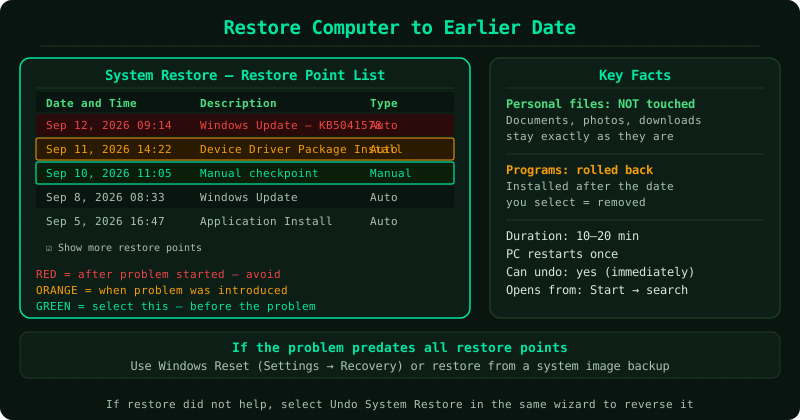
What changes and what stays the same
Changes back to the earlier date: Installed programs, device drivers, Windows system files, and registry settings. Any software installed after the restore point date is removed.
Stays the same (not affected): All personal files — documents, photos, music, videos, downloads. These are completely untouched regardless of how far back you restore.
How to verify the fix
After the restore completes and your computer restarts, confirm the specific problem is gone. Open the application that was crashing, reproduce the steps that triggered the error, or check the settings that had changed. If the issue is resolved, the restore reached the right date. If it persists, the problem predates the restore point you chose — run System Restore again and select an older restore point. If no suitable restore point exists, see Windows Backup and Restore for full system image recovery options.
Step-by-step fix
Open System Restore and view available dates
Press the Windows key and type Create a restore point, then click the matching result. The System Properties window opens. Click System Restore, then click Next. The wizard displays a list of restore points — each row shows a date and time, a description of what triggered the restore point (such as Windows Update or Driver Install), and the type (Automatic or Manual). This list shows the dates you can restore your computer to. To see all available dates, check the Show more restore points box at the bottom left of the list — by default only the most recent restore points are shown.
Identify when the problem started
Before selecting a date, determine when the computer last worked correctly. Think about what changed recently: was there a Windows Update installed on a specific date, a new driver downloaded from a manufacturer's website, a program installed, or a settings change made? Match that event to the dates in the restore point list. To see more detail about each restore point, click on it once — the description field shows what triggered it. Select a restore point from the date before the problem began. If the problem started on a Thursday, choose a restore point from Wednesday or earlier.
Check which programs will be affected
Before confirming the restore, click Scan for affected programs. A window opens showing two lists: programs and drivers that will be deleted (installed after the restore point date) and programs that will be restored (were present at the restore point date but removed since). This scan does not make any changes — it only shows what will happen. Your personal files (documents, photos, videos, music, downloads) do not appear in either list because they are not affected by System Restore. Programs you installed before the selected date will be restored to their state on that date.
Confirm and run the restore to the earlier date
After selecting the restore point and reviewing the affected programs, click Next. The confirmation screen shows the restore point date and time, the description, and the drive that will be restored. Verify the date is the one you intended, then click Finish. A warning appears: Once started, System Restore cannot be interrupted. Click Yes. Windows closes all open programs and begins restoring to the selected date. The screen goes dark, and a progress animation appears. The process takes 10 to 20 minutes. Your computer restarts automatically when complete.
Verify the computer is back to the earlier date's state
After the restart, Windows shows a confirmation message: System Restore completed successfully. The date and restore point description are shown for reference. Test the issue that caused the problem — open the application that was crashing, check the settings that changed, or verify that the error message is gone. The system configuration should now match what it was on the date of the restore point. If the problem still exists, it predates the restore point you chose — run System Restore again and select an older date. If you want to reverse the restore, open System Restore immediately and select Undo System Restore.