
A Windows system image backup is a complete copy of your entire drive — Windows, installed programs, settings, and personal files — saved to an external hard drive. If your system drive fails, Windows becomes unbootable, or a major problem cannot be fixed any other way, you restore from the image and your PC returns to exactly the state it was in when the backup was made.
System Restore protects against software changes but uses restore points stored on the same drive. A system image backup protects against hardware failure by keeping a complete copy on a separate device.
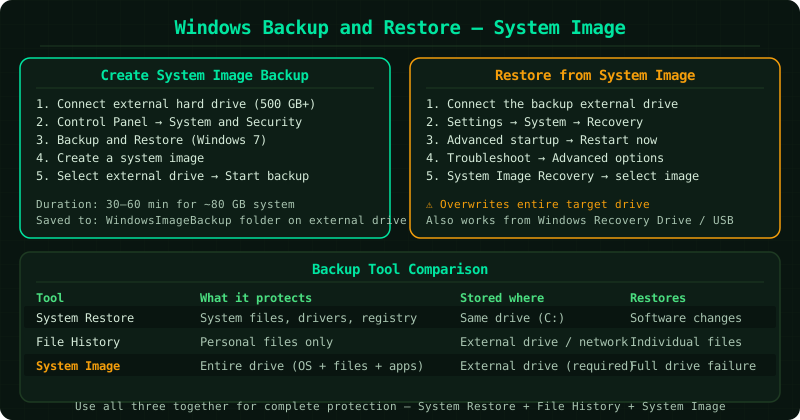
System image vs File History vs System Restore
| Tool | Protects | Where stored | Restore scope |
|---|---|---|---|
| System Restore | System files, registry, programs | Same drive | Roll back software changes |
| File History | Personal files only | External drive or network | Individual file versions |
| System Image | Entire drive | External drive | Full system recovery |
For recovering accidentally deleted files (not a full system restore), see the File Recovery Windows guides — they cover the Recycle Bin, File History, and sector-level scanning.
How to verify the fix
After the backup completes, open File Explorer and navigate to the external drive. You should see a folder named WindowsImageBackup containing a subfolder with your computer name. This confirms the backup was saved correctly. To test the restore process without actually restoring, boot from a recovery drive and browse to the System Image Recovery option — you can verify the image is detected and confirm its date without completing the restore.
Step-by-step fix
Connect an external hard drive for the backup
A Windows system image backup requires a separate storage device — the image cannot be saved to the same drive being backed up. Connect an external USB hard drive with enough free space to hold your entire system drive. A typical Windows installation with programs uses 50 to 150 GB, so a 500 GB or larger external drive is a comfortable target. USB flash drives are generally not supported for system image backups because they are too slow and often too small. The drive does not need to be formatted specifically — Windows handles the backup format — but ensure it is connected and visible in File Explorer before proceeding.
Open Backup and Restore in Control Panel
Press the Windows key and type Control Panel, then open it. Click System and Security, then click Backup and Restore (Windows 7). Despite the 'Windows 7' label, this tool is fully functional in Windows 10 and Windows 11 and creates current system image backups — the name was retained from the original Windows 7 interface. On the left panel, click Create a system image. Windows scans your system and then asks where you want to save the backup. Select On a hard disk and choose your external drive from the dropdown list.
Configure and start the system image backup
After selecting the external drive, Windows shows which drives will be included in the backup. By default, the system drive (C:) and any system-reserved partitions are selected and cannot be deselected — these are required for Windows to function. Additional drives can be added optionally. Review the backup settings: the estimated backup size is shown, and Windows confirms there is enough space on the external drive. Click Start backup. The backup begins immediately. A progress window shows the current status and estimated time remaining. For a typical 80 GB system, the backup takes 30 to 60 minutes over a USB 3.0 connection.
Create a system repair disc (optional but recommended)
After the backup completes, Windows offers to create a system repair disc. If you have a DVD drive, insert a blank DVD and click Yes — this creates a bootable disc that can start your computer and access the system image if Windows will not start. If you do not have a DVD drive, skip this step and create a Windows Recovery Drive on a USB stick instead — see the [Windows Recovery Drive guide](/computers/windows-recovery-drive/). A recovery tool is essential: without it, you cannot restore the system image if Windows will not boot.
Restore Windows from a system image backup
To restore from a system image: if Windows can start, go to Settings → System → Recovery → Advanced startup → Restart now. If Windows cannot start, boot from a Windows Recovery Drive or Windows installation media. From the Windows Recovery Environment, select Troubleshoot → Advanced options → System Image Recovery. Windows searches for system images on connected drives and prompts you to select one. After selecting the image, confirm the drives to restore — note that restoring a system image overwrites the entire target drive, replacing all current data with the backup's contents. Click Next and Finish to begin the restore. The process takes 30 to 90 minutes.
Set up regular automatic backups with File History
A system image backup is a complete point-in-time snapshot but does not automatically update. To protect files on an ongoing basis, also enable File History: go to Settings → System → Storage → Advanced storage settings → Backup options and turn on Automatically back up my files. File History backs up documents, photos, and other personal files every hour. Use both together: File History for continuous file-level protection, and a system image for full system recovery if the drive fails. For recovering individual deleted files (as opposed to the full system), see the [File Recovery Windows](/computers/file-recovery-windows/) guides.